
A SMALLER WORKFLOW / APPSCREENSHOOT
App Store Screenshot Resizer
Resize an existing screenshot without guessing the final pixel dimensions. This App Store screenshot resizer offers iPhone and iPad presets, Fit and Fill modes, and real downloadable previews. Fit preserves the whole image with background space; Fill covers the canvas by cropping the edges. Neither mode stretches your interface. Select a target, inspect the composition and download the individual files or a batch ZIP.
Fit and Fill solve different composition problems
Fit scales the image until every part is inside the target canvas. If the source and target have different proportions, background appears around the image. Fill scales until the entire canvas is covered, which can remove content from the sides or the top and bottom. Neither mode changes the relative proportions of the app interface.
Choose based on the information you need to preserve. Fit is useful when every control matters. Fill can work when the source has nonessential margins, but inspect the output carefully. A crop that removes a button or cuts a meaningful line of text may change what the screenshot communicates. The tool uses a centered crop and does not let you move the crop position.
App Store screenshot resizer output dimensions
Choose a supported iPhone or iPad preset from the selector. Portrait uses the dimensions shown there; landscape reverses width and height. Output is produced at that exact canvas size, with no extra export-scale multiplier. The filenames include the dimensions so you can identify the target after downloading a batch.
Resizing is not layout adaptation. An iPhone capture remains an iPhone interface even if you select an iPad target. The tool cannot reposition text that has already been baked into the source image or recover detail lost in an earlier export. When the composition needs structural changes, return to the editable source document in the studio.
Resize a batch without losing the source order
Upload up to eight PNG, JPEG or WebP images, each up to 20 MB and no more than 80 MB total. Choose one target and orientation for the batch, select Fit or Fill, then generate the results. Processing happens one image at a time. Download individual results or one ZIP, with numbered filenames preserving the selection order.
A larger output does not create new detail. Low-resolution source text can look soft when enlarged, even if the final dimensions are correct. Open the result and inspect the smallest meaningful text before uploading it. For a different target, change the selector and regenerate; previous results are cleared so an old-size file is not confused with the new settings.
REAL TOOL OUTPUT / FICTIONAL DEMO
See the example result
This image was generated by this page’s tool using fictional demo content. Load the example above, change the settings and generate your own downloadable version.
Download example preview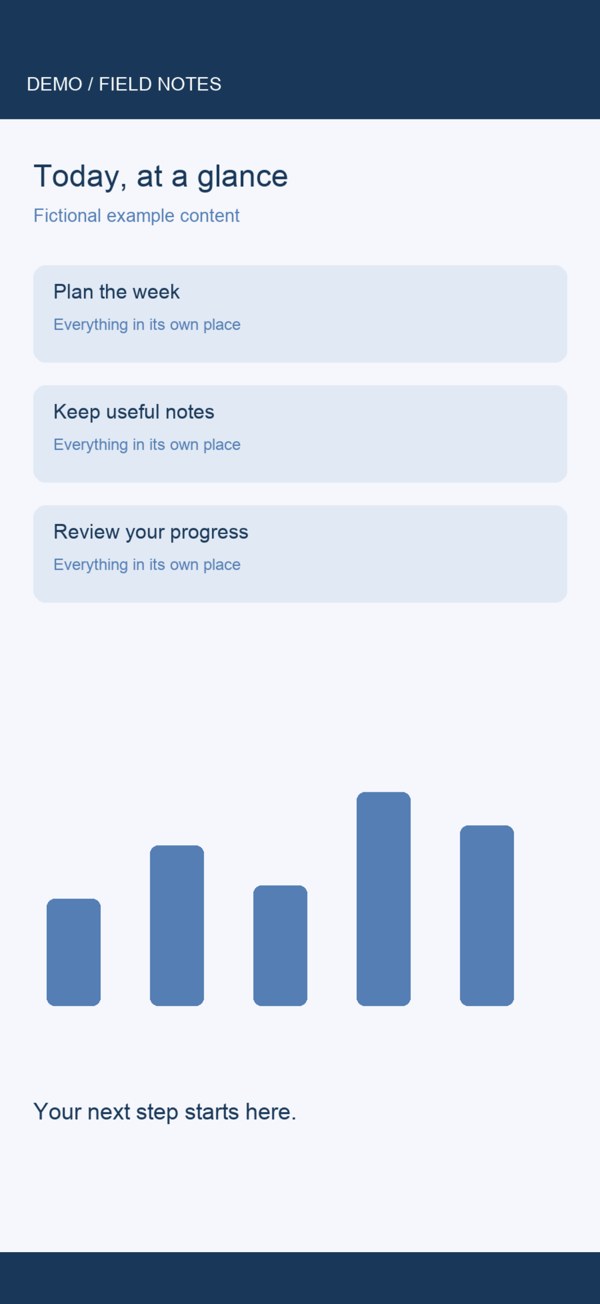
Flatten transparency and check the new file
JPEG downloads contain no alpha channel. PNG downloads are encoded as RGB PNG files without alpha rather than as default browser RGBA PNG files. The selected artwork background fills exposed canvas areas, and any remaining transparent pixels are flattened during encoding. This handles file structure separately from how solid an image looks in a preview.
After resizing, run the downloaded file through the screenshot checker. That lets you verify the dimensions and PNG metadata of the actual output, not the original source. File checks do not assess screenshot content or guarantee acceptance. Keep a copy of the original image so you can compare cropping and avoid repeating lossy JPEG conversions unnecessarily.
Questions about app store screenshot resizer
Does the resizer stretch my screenshot?
No. Fit and Fill both preserve the original proportions. Fit may add background space; Fill may crop content. The preview shows the real output so you can inspect the tradeoff before downloading.
Can I choose where Fill crops?
The current Fill mode uses a centered crop. It does not offer a movable crop box. If the center crop removes something important, use Fit or rebuild the composition in the full studio.
Can it remove a PNG alpha channel?
Yes. PNG downloads are RGB without alpha, and JPEG is available too. Check the downloaded output with the screenshot checker. Removing alpha metadata does not fix misleading content or wrong device imagery.
Will enlarging make text sharper?
No. Resizing cannot reconstruct detail absent from the source. A larger file can still contain blurred controls or text. Start with the highest-quality capture available and inspect the final result at a readable size.
Can I resize a whole set?
Yes. Choose up to eight images and one target for the batch. Download a ZIP containing the numbered results. Use a separate run for another target or orientation so the output dimensions remain explicit.
Can I make iPad screenshots from phone captures?
The file can be resized, but its interface remains a phone interface. Use genuine tablet captures for an iPad listing. The resizer changes pixel dimensions, not the behavior or layout of your app.
Reference: Apple screenshot specifications. Tool catalog checked October 3, 2026. Review current store requirements before submission.