
A SMALLER WORKFLOW / APPSCREENSHOOT
Panoramic App Store Screenshot Generator
Create a connected screenshot sequence without losing control of the individual files. This panoramic App Store screenshot generator carries one background gradient across your set while keeping each app capture and headline inside its own image. Upload the screens in their intended order, select a device size and download the separate outputs. Load the three-screen example to inspect the transition from overall sequence to individual files.
FRAMELESS SAMPLE / FICTIONAL DEMO
See the example result
These three numbered images were generated with the same continuous background. Each file is 1320 × 2868 pixels. Load the example above to create the sequence with your chosen 2D or 3D device frames.
Download example preview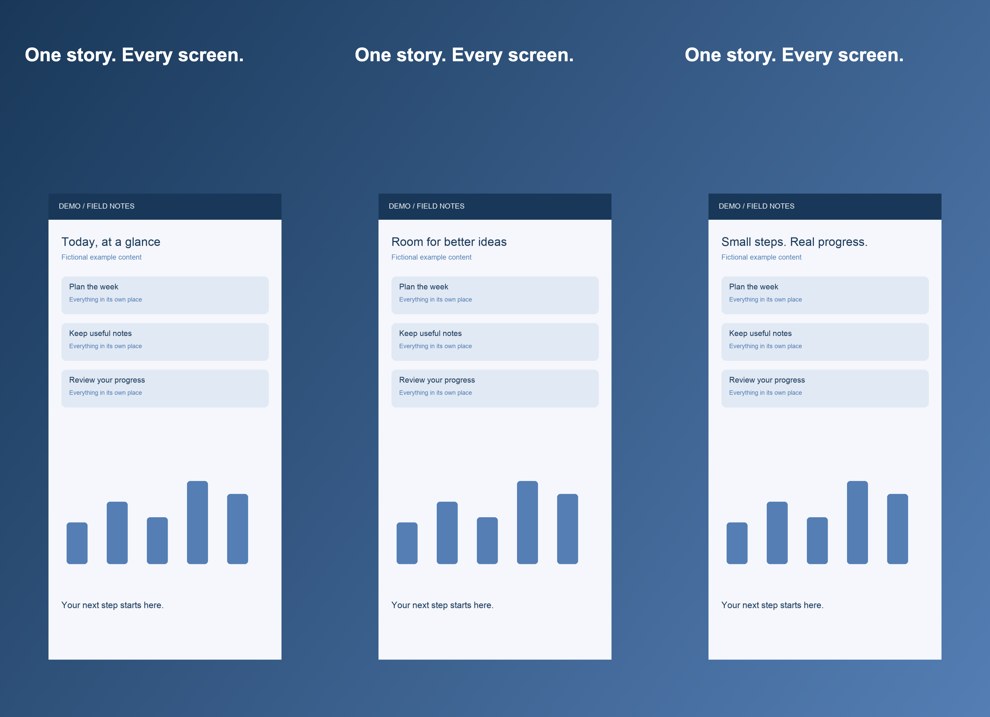
How the continuous background is built
A panoramic set works best when the background links the images but each screenshot still communicates a complete idea. Our gradient is calculated across the entire sequence, then rendered at the appropriate position for each exported image. The end of one background therefore meets the start of the next instead of resetting to the first color on every screen.
Your app captures are fitted separately within each section. This focused tool does not move a device or a headline across file boundaries. That keeps the first version predictable and avoids cutting important UI in half. Use the full studio when you need a device spanning sections or individually composed text layers.
Choose no frame, a 2D iPhone model and color, or a 3D iPhone model with X, Y and Z angle controls. The live sequence and generated files use the same device settings. Device selection is independent of the export-size preset, so choose a frame that matches the actual interface you captured.
Avoid information that only works across two images
A connected design can look excellent as one strip and become confusing when viewed one image at a time. Open the individual results and make sure each capture can be understood independently. Keep key interface elements and meaningful words within one file. Background continuity should support the story rather than become a requirement for reading it.
This generator has a shared theme and lets you override the headline for each screen. It does not detect whether your message is persuasive, translate copy or reorder screenshots automatically. The demo output is fictional artwork, not evidence of a released app. Replace it with real product captures and review current Apple guidance before submitting your own sequence.
Plan the screenshot sequence before generating
Upload up to eight captures in the order you want visitors to see them. The tool preserves file selection order and labels the output files with sequence numbers. Use Earlier to move a capture forward in the sequence, or Remove to leave it out. Use filenames with a clear numeric prefix when preparing your source files.
Choose a headline that can describe the complete set without becoming repetitive. The shared headline supplies a starting point for every section. Select an image and edit its individual headline to tell a different part of your story. Your later screenshots should add evidence of the product rather than repeat the same capture.
Panoramic App Store screenshot generator dimensions
Select an available iPhone or iPad preset and choose portrait or landscape. Every image in the sequence uses that target’s exact dimensions. The files are exported separately, rather than delivering a single oversized panorama that you would still need to slice yourself. Both JPEG and RGB PNG are available, and the ZIP preserves the numbered image filenames.
A larger canvas does not adapt the source app interface to another device. If you switch from iPhone to iPad, use captures of the actual iPad experience. This tool maintains image proportions but does not reconstruct missing tablet UI. Check the exported dimensions and the content of each section before assigning the files to a listing.
Questions about panoramic app store screenshot generator
What makes the output panoramic?
The background gradient continues across the sequence rather than restarting in every image. Each capture and headline remains within one section. The result is a connected set of individually downloadable screenshots.
Can a device cross two screenshots?
This focused generator keeps each uploaded image inside its section. For devices or decorative artwork spanning boundaries, use a connected template in the full studio and inspect each sliced export carefully.
How many images can I upload?
Choose up to eight images per batch, no more than 20 MB each or 80 MB total. Processing is sequential to reduce peak memory use. Large decoded source images above 32 megapixels are rejected.
Can each screen have different copy?
Yes. Start with a shared headline, then select each image and edit its individual headline. The live preview shows the complete sequence before you generate the separate files.
Do I get one large image?
No. You get one image per uploaded capture at the chosen target dimensions. Download them individually or together as a ZIP. Sequence numbers in the filenames help preserve the order.
Can I use landscape layouts?
Yes. Choose landscape to swap the selected preset’s width and height. Use source captures that suit that orientation, and check the real app interface and each image’s content before submission.
Reference: Apple screenshot specifications. Tool catalog checked October 3, 2026. Review current store requirements before submission.